> For the complete documentation index, see [llms.txt](https://help.fulfilleo.solvenium.com/llms.txt). Markdown versions of documentation pages are available by appending `.md` to page URLs; this page is available as [Markdown](https://help.fulfilleo.solvenium.com/settings/http.md).
# HTTP(S)
Fulfilleo can fetch tracking data from any HTTP endpoint — a supplier's REST API, a SOAP service, or a plain feed URL. You provide the URL, choose a request method, and optionally configure authentication and custom headers.
## Request Settings
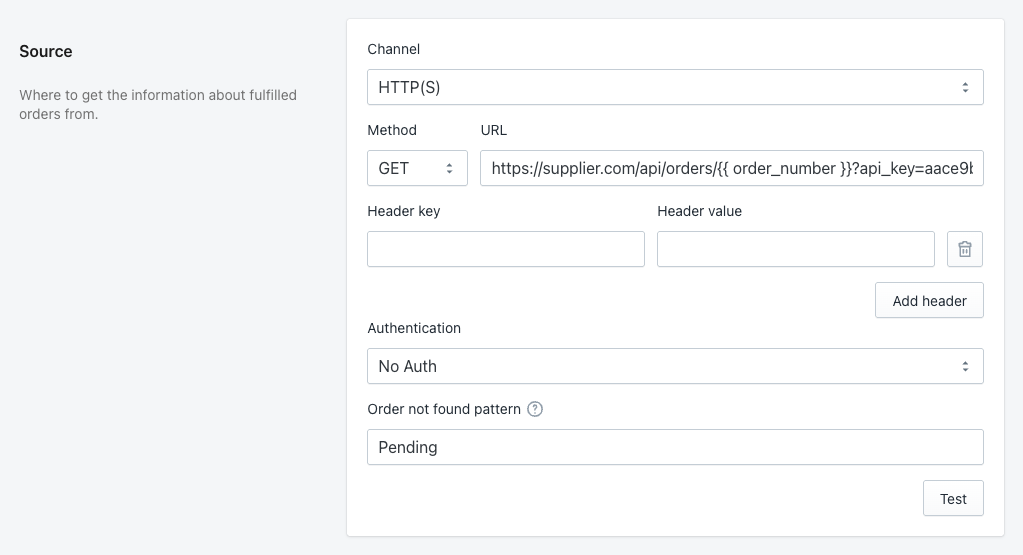
HTTP(S) source channel settings
### Method
Choose **GET** or **POST**. Most APIs and feed URLs use GET. Select POST when the endpoint expects a request body (for example, a SOAP service or a JSON API that requires query parameters in the body).
### URL
The endpoint Fulfilleo will call to retrieve tracking data. The URL can contain **variables** enclosed in double curly braces — these are replaced with actual values before the request is made.
The variables you use in the URL determine **how Fulfilleo fetches data**. There are two modes:
#### Per-order mode
When the URL contains an order-specific variable, Fulfilleo switches to **per-order mode**. It first retrieves all unfulfilled orders from your Shopify store, then sends a separate request for each order — replacing the variable with that order's value.
Example URLs:
```
https://supplier.com/api/tracking/{{order_number}}
https://supplier.com/api/orders/{{order.name}}/status
https://supplier.com/api/tracking?order={{order.id}}
```
Available order variables:
| Variable | Value |
| -------------------------------------- | --------------------------------------------------- |
| `{{ order.id }}` | Shopify internal order ID (numeric) |
| `{{ order.name }}` | Order name as shown in Shopify admin (e.g. `#1234`) |
| `{{ order.number }}` | Order sequence number (numeric) |
| `{{ order.order_number }}` | Same as `order.number` |
| `{{ order.email }}` | Customer email address |
| `{{ order_id }}` | Same as `order.id` |
| `{{ order_name }}` | Same as `order.name` |
| `{{ order_number }}` | Same as `order.order_number` |
| `{{ order.metafields.namespace.key }}` | Value of a specific order metafield |
**Per-order processing outcome per order:**
* Order endpoint returns tracking data → fulfillment update is scheduled.
* Order endpoint returns a response matching the "order not found" pattern, or HTTP 404 → recorded as a **warning**.
* Order endpoint returns a response but no tracking data can be extracted → recorded as a **warning**.
* Any other error → recorded as an **error**.
#### List mode
When the URL does **not** contain any order variables, Fulfilleo makes a single request (or multiple paginated requests) and expects the response to contain tracking data for many orders at once.
Example URLs:
```
https://supplier.com/api/tracking
https://supplier.com/feeds/tracking.csv
https://supplier.com/api/tracking?page={{page}}
```
**Pagination** — If your supplier's API returns results across multiple pages, include the `{{ page }}` variable in the URL. Fulfilleo will start at page 1, increment the page number after each request, and keep fetching until the response stops changing or 100 pages are reached.
{% hint style="info" %}
The `{{ page }}` variable supports Liquid filters. For example, if the API uses zero-based page numbering, use `{{ page | minus: 1 }}`.
{% endhint %}
Additional list mode variables:
| Variable | Value |
| ----------------------------------------------- | ----------------------------------------------------------- |
| `{{ page }}` | Current page number (starts at 1) |
| `{{ oldest_unfulfilled_order_created_at_utc }}` | Creation date of the oldest unfulfilled order in UTC format |
### Body (POST only)
When the method is set to POST, a **Body** field appears where you can enter the request payload. This is typically JSON or XML, depending on what the endpoint expects.
### Headers
You can add custom HTTP headers to the request. Each header consists of a **key** and a **value**. Click **Add header** to add more. Headers are useful for setting content types, API keys, or any other custom values required by the endpoint.
## Authentication
Fulfilleo supports four authentication methods:
### No Auth
No authentication is sent with the request. Use this for public endpoints or when authentication is handled in another way — for example, through a custom header or an API key passed directly in the URL as a query parameter (e.g. `https://supplier.com/api/tracking?api_key=YOUR_KEY`).
### Basic Auth
Standard HTTP basic authentication. Enter a **username** and **password**, and Fulfilleo will send them as an `Authorization: Basic ...` header with each request.
### Bearer Token
Token-based authentication. Enter the **token** value, and Fulfilleo will include it as an `Authorization: Bearer ...` header.
### Request
Use this when the API requires a separate authentication step before the main request — for example, when you need to call a login endpoint first to obtain a temporary token.
Configure the authentication request:
1. Choose the **Method** (GET or POST).
2. Enter the **Auth URL** — the endpoint that returns the authentication token.
3. For POST requests, select the **Content Type** and enter the **Body** (e.g. JSON with your API credentials).
After saving, Fulfilleo will first call the Auth URL, then use the response in the main request. Reference the authentication response in the main request URL or headers using the `{{ auth }}` variable. If the authentication response is JSON, you can reference specific fields — for example, `{{ auth.token }}` or `{{ auth.access_token }}`.
**OAuth2 (Request method)**
OAuth 2.0 is a standard for delegated authorization that allows applications to obtain limited access to an API on behalf of a user or system.
In Fulfilleo, OAuth2 is handled as a special case of the **Request** authentication method, because it requires an initial request to retrieve an access token before calling the main endpoint.
In a typical setup:
* A **POST** request is sent to the token endpoint (Auth URL)
* The request includes credentials (e.g. `client_id`, `client_secret`)
* The response contains an **access token**
This token is then used in the main request, typically in the Authorization header.
**Example (Client Credentials flow)**
Auth request:
```
POST https://api.example.com/oauth2/token
Content-Type: application/x-www-form-urlencoded
Body:
grant_type=client_credentials&client_id=CLIENT_ID&client_secret=CLIENT_SECRET
```
Response:
```
{
"access_token": "eyJhbGciOiJIUzI1NiIs...",
"token_type": "Bearer",
"expires_in": 3600
}
```
Authorization header used in the main request:
```
Authorization: Bearer {{ auth.access_token }}
```
Setup:
OAuth2 authentication setup in Fulfilleo
## Order Not Found Pattern
This field appears only in **per-order mode**. Some APIs return a successful HTTP response (status 200) even when an order is not found, but include a specific text in the response body — for example, `"Order does not exists"`.
Enter that text here so Fulfilleo can recognize it and skip the order instead of treating the response as valid tracking data. This is also useful when the order exists in the supplier's system but has not been shipped yet — the API may return a response like `"Pending"` or `"Undefined"` instead of tracking data.
{% hint style="info" %}
If the API returns HTTP status **404** for missing orders, you do not need to set this field — Fulfilleo handles 404 responses automatically.
{% endhint %}
## Testing
Click the **Test** button to send a test request and see the response. This helps verify that the URL, authentication, and headers are configured correctly before saving. The response status code and body are displayed below the button.