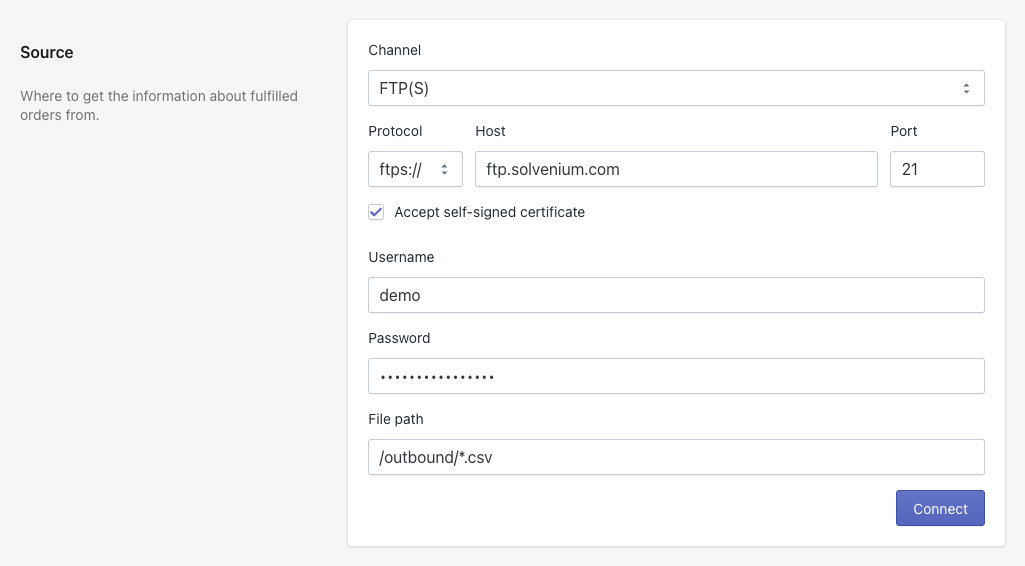
FTP(S)
Fulfilleo can connect to an FTP server to automatically fetch tracking files from your supplier. Three protocols are supported:
Connection Setup

Protocol
Choose ftp://, ftps://, or sftp://. Changing the protocol automatically updates the default port.
ftp://
Standard, unencrypted FTP. Credentials and file data are transmitted in plain text.
21
ftps://
FTP over TLS (encrypted). Fulfilleo handles both explicit and implicit TLS automatically. If your server uses a self-signed certificate, enable the Accept self-signed certificate option.
990
sftp://
SFTP over SSH — a completely separate protocol from FTP/FTPS. Supports password and private key authentication.
22
Host
Hostname or IP address of the server (e.g. files.example.com).
Port
Port number. Defaults: 21 for FTP, 990 for FTPS, 22 for SFTP.
Accept self-signed certificate
FTPS only. Enable this option if the server uses a self-signed TLS certificate.
Username
Your FTP/SFTP login name.
Password
Password for FTP, FTPS, and SFTP with password authentication.
Private Key
SFTP with private key authentication only. Paste the full contents of your OpenSSH private key (beginning with -----BEGIN OPENSSH PRIVATE KEY-----). The server must have the corresponding public key in its authorized_keys file.
File path
The File path field tells Fulfilleo where to look for tracking data. It supports three formats, each producing different processing behaviour.
Static path
A fixed path to a single file.
Fulfilleo checks whether the file has been modified since the last run. If the file has not changed, it is skipped and the run is recorded as File already processed. If it has changed, the file is downloaded and processed.
Wildcard path
A path with * or ? wildcards in the filename.
Fulfilleo lists the directory and matches all filenames against the pattern (case-insensitive). For each matching file it checks the modification time and only processes files that are newer than the previous run. Multiple files can be processed in a single run.
Per-order path (Liquid template)
A path that contains Liquid variables referencing the Shopify order.
When the file path contains order variables, Fulfilleo switches to per-order mode: it fetches all unfulfilled Shopify orders and looks for a dedicated file for each one. This is useful when your supplier places each order's tracking data in a separate file named after the order.
The following variables are available in the file path template:
{{ order.id }}
Shopify internal order ID (numeric)
{{ order.name }}
Order name as shown in Shopify admin (e.g. #1234)
{{ order.number }}
Order sequence number (numeric)
{{ order.order_number }}
Same as order.number
{{ order_id }}
Same as order.id
{{ order_name }}
Same as order.name
{{ order_number }}
Same as order.order_number
{{ order.metafields.namespace.key }}
Value of a specific order metafield
Liquid variables and wildcards can be combined. For example, /outbound/{{ order.name }}*.csv matches files whose names start with the order name.
Per-order processing outcome per order:
File not found on the server → recorded as a warning.
File found but contains no tracking data → recorded as a warning.
File found and tracking data extracted → fulfillment update is scheduled.
Any other error → recorded as an error.
Firewall Whitelist
Fulfilleo connects to your FTP server from a fixed IP address. If your supplier's server is protected by a firewall, you or your supplier will need to whitelist the following IP:
Pass this address to whoever manages the FTP server so they can allow incoming connections from it.
Connecting and Testing
After filling in all fields, click Connect. Fulfilleo will:
Establish a connection to the server.
Save the credentials.
If the file path points to a CSV or XLSX file, download it and detect the column names — these will be available to select in the Data Mapping section.
If the file is not found at the given path, the connection still succeeds but a warning is shown next to the File path field. You can proceed with saving and Fulfilleo will look for the file again at the next scheduled run.
Once connected, the Edit button appears and all fields become read-only. Clicking Edit unlocks the fields so you can update the connection details.
Last updated