# Update order tracking from CSV

Basic setup for fulfilling the entire order

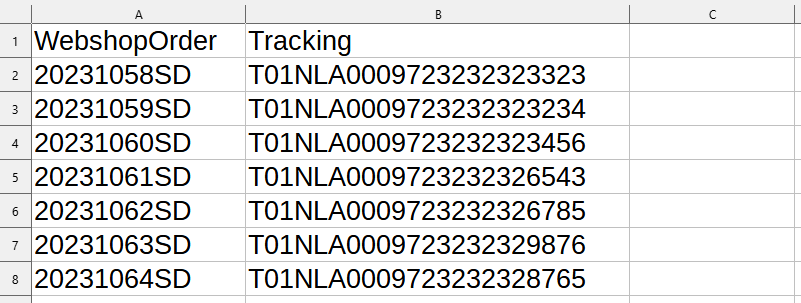
In order to fulfill all items in the order, you need only its number and a tracking number.

<div data-full-width="false"><figure><img src="https://2609323150-files.gitbook.io/~/files/v0/b/gitbook-x-prod.appspot.com/o/spaces%2F97qHA4IuHSHLxA8BhsWe%2Fuploads%2Fgit-blob-a4eb081f35e0a01a87312e464076a77f5388b988%2Fshopify-order-and-tracking-numbers-in-sheet-from-supplier.png?alt=media" alt="Order and tracking numbers in the sheet from the supplier" width="563"><figcaption><p>Order and tracking numbers in the sheet from the supplier</p></figcaption></figure></div>

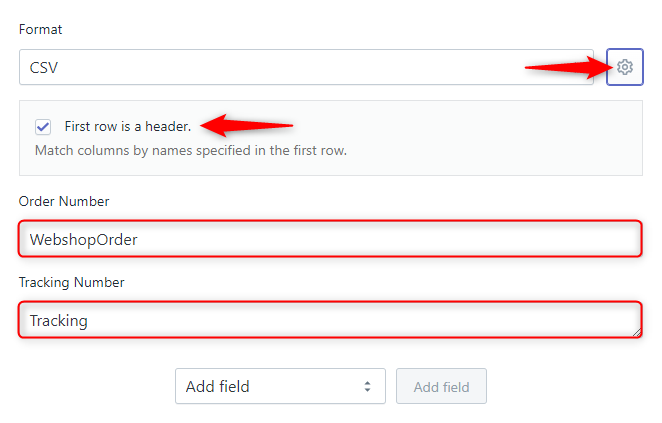
For the above example, use the following settings in the **Data Mapping** section. The first row contains the column names, so click on the gear icon and check the option **First row is a header**.

<figure><img src="https://2609323150-files.gitbook.io/~/files/v0/b/gitbook-x-prod.appspot.com/o/spaces%2F97qHA4IuHSHLxA8BhsWe%2Fuploads%2Fgit-blob-88410260b0d99a0790e0e4ff47cdaa48807bc5b1%2Ffulfilleo-update-tracking-data-csv-shopify-order.png?alt=media" alt=""><figcaption><p>Basic settings to fulfill all items for CSV file</p></figcaption></figure>

### Fulfill part of order based on vendor

When items in an order come from different vendors, you can create fulfillment automations for each vendor. In that case, set the Item Vendor filter, and enter vendor name in the empty field. This way, the order items will be divided into multiple shipments according to the product vendor.

<figure><img src="https://2609323150-files.gitbook.io/~/files/v0/b/gitbook-x-prod.appspot.com/o/spaces%2F97qHA4IuHSHLxA8BhsWe%2Fuploads%2Fgit-blob-82da564939aec5be61cf73991ad35de5460c6ace%2Ffulfilleo-fulfill-items-from-shopify-order--by-vendor.png?alt=media" alt=""><figcaption><p>Setting fulfillment based on vendor</p></figcaption></figure>

### Fulfill each line item separately

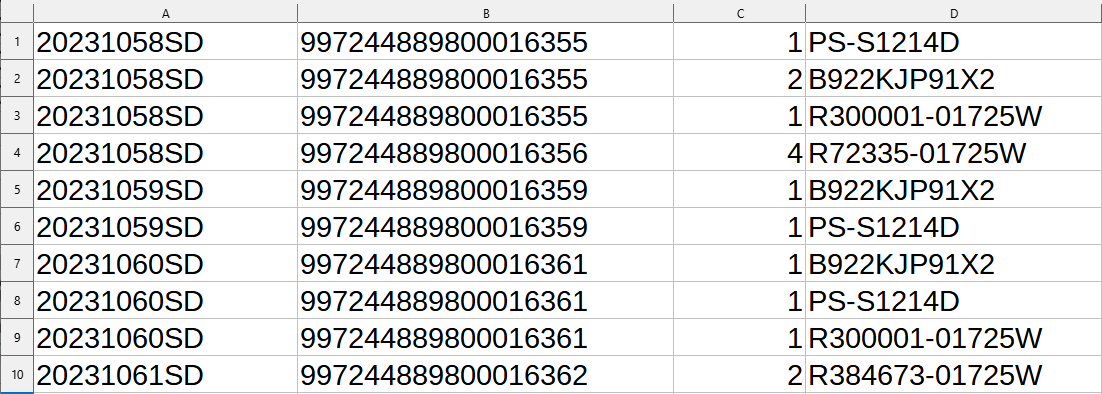
It may happen that an order is divided into multiple shipments. In such case the sheet from a supplier looks something like this:

<figure><img src="https://2609323150-files.gitbook.io/~/files/v0/b/gitbook-x-prod.appspot.com/o/spaces%2F97qHA4IuHSHLxA8BhsWe%2Fuploads%2Fgit-blob-7528205277203dd04e8ac4a5b3d5b5f094bb4e09%2Ftracking-numbers-for-each-line-item.png?alt=media" alt="Sheet with each line item separately"><figcaption><p>Sheet with each line item separately</p></figcaption></figure>

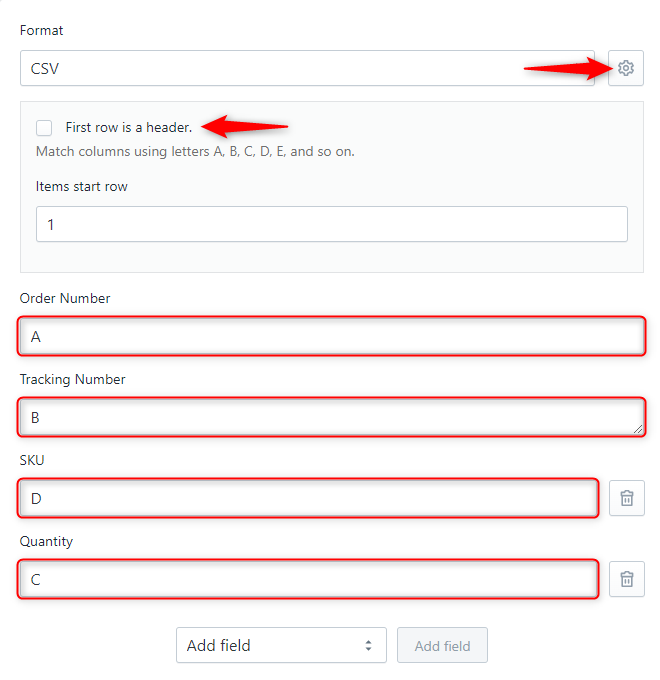
In the above sheet, column **A** is the **order number**, **B** contains **tracking numbers**, **C** is the **quantity**, and **D** is the **SKU**. The item list starts with the first row. The **Items start row** field will appear when you select the option that **SKU** is to be taken from a specific **column**. Configure your Data Mapping section as follows:

<figure><img src="https://2609323150-files.gitbook.io/~/files/v0/b/gitbook-x-prod.appspot.com/o/spaces%2F97qHA4IuHSHLxA8BhsWe%2Fuploads%2Fgit-blob-48ab1c00a99630904b0fd82973410c95f1d2902b%2Ffulfilleo-shopify-fulfill-specific-ordered-items-csv.png?alt=media" alt=""><figcaption><p>Fulfilleo settings for CSV when each line item should be fulfilled separately</p></figcaption></figure>

### Extract data from a specific cell in CSV

Referring to a specific cell in a spreadsheet can be applied in the following fields: **Order Number**, **Tracking Number** and **Tracking Company**.

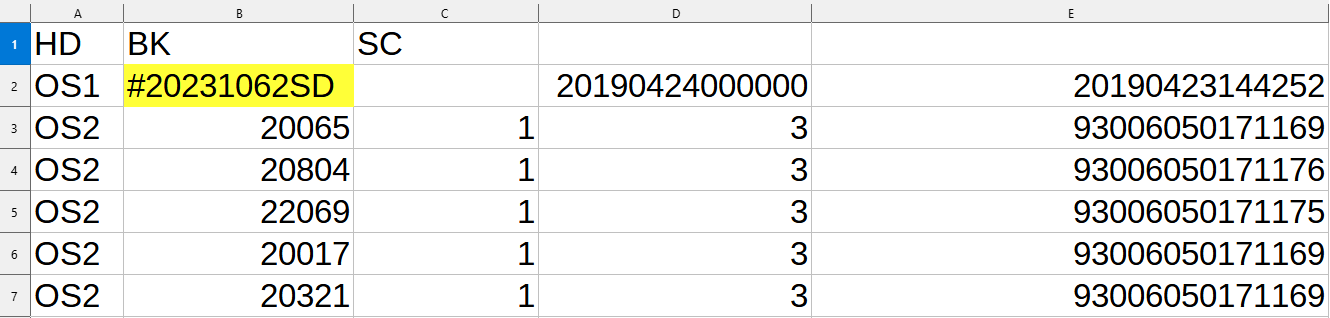
For example, in the following sheet, the order number (yellow) is in cell **B2**.

<figure><img src="https://2609323150-files.gitbook.io/~/files/v0/b/gitbook-x-prod.appspot.com/o/spaces%2F97qHA4IuHSHLxA8BhsWe%2Fuploads%2Fgit-blob-56b4453665309ed3300cc70e25a70d11ccb965a3%2Ffuflifilleo-example-sheet-with-order-number-in-single-cell.png?alt=media" alt="Order number provided in the specific cell in the sheet annotated"><figcaption><p>Order number provided in the specific cell in the sheet</p></figcaption></figure>

There are two ways to extract it from this cell.

#### Extract data from a single cell using its address

The first method is providing the cell address using its column and row indexes. So for the above example, enter **B2** in the **Order Number** field in the **Data Mapping** section:

<figure><img src="https://2609323150-files.gitbook.io/~/files/v0/b/gitbook-x-prod.appspot.com/o/spaces%2F97qHA4IuHSHLxA8BhsWe%2Fuploads%2Fgit-blob-592a65b52f5bfa120c254a728855957943b15be4%2Ffulfilleo-tracking-number-in-specific-cell.png?alt=media" alt=""><figcaption><p>Refer to the specific cell using its address - Fulfilleo settings</p></figcaption></figure>

#### Extract data from a single cell using Liquid

Another way is to use the **rows** variable in the desired field. Please note that arrays in Liquid are indexed starting from 0, so the **B2** address with the Liquid syntax will look like this:

{% tabs %}
{% tab title="Fulfilleo setting" %}

<figure><img src="https://2609323150-files.gitbook.io/~/files/v0/b/gitbook-x-prod.appspot.com/o/spaces%2F97qHA4IuHSHLxA8BhsWe%2Fuploads%2Fgit-blob-efe20e80aa86cead43e5b79c407388551af32035%2Ffulfilleo-tracking-number-in-specific-cell-liquid.png?alt=media" alt="How to refer to the specific cell using Liquid - Fulfilleo settings"><figcaption><p>Refer to the specific cell using Liquid - Fulfilleo settings</p></figcaption></figure>
{% endtab %}

{% tab title="Copy this setting" %}

```
{{ rows[1]["B"] }}
```

{% endtab %}
{% endtabs %}

#### Set the row from which the items start

If you want Fulfilleo to fuflil specific items, omit rows that do not contain tracking data. In the example below tracking data for individual items starts from row number 3 (red: **SKU**, green: **quantity**, blue: **tracking number**).

<figure><img src="https://2609323150-files.gitbook.io/~/files/v0/b/gitbook-x-prod.appspot.com/o/spaces%2F97qHA4IuHSHLxA8BhsWe%2Fuploads%2Fgit-blob-28049246baaf55b9bedd1bc55e833cbfec85f20a%2Ffulfilleo-example-sheet-with-tracking-data.png?alt=media" alt="List of items to be fulfilled that starts from the row 3 annotated"><figcaption><p>List of items to be fulfilled that starts from the row 3</p></figcaption></figure>

Select the row number from which starts the list of items to be fulfilled.

<figure><img src="https://2609323150-files.gitbook.io/~/files/v0/b/gitbook-x-prod.appspot.com/o/spaces%2F97qHA4IuHSHLxA8BhsWe%2Fuploads%2Fgit-blob-60da29ffefb318b42985ddccb52a9573ccd9a954%2Ffulfilleo-item-start-row-setting.png?alt=media" alt="How to set offset in the Fulfilleo"><figcaption><p>Set offset in the Fulfilleo</p></figcaption></figure>

This option is available only if you have not selected to fulfil all items.