# What is Fulfilleo?

Fulfilleo is an app that automatically imports order tracking numbers from your supplier to your Shopify store.

You can use Fulfilleo to integrate with

* a dropshipping provider
* a fulfillment service
* a print-on-demand service

The app is able to integrate with nearly any external system.

Supported integration channels:

* Email
* [FTP](/settings/ftp)
* [HTTP](/settings/http)
  * REST API
  * SOAP API
  * Feed URL

Supported data formats:

* [CSV](/data-mapping/update-order-tracking-from-csv)
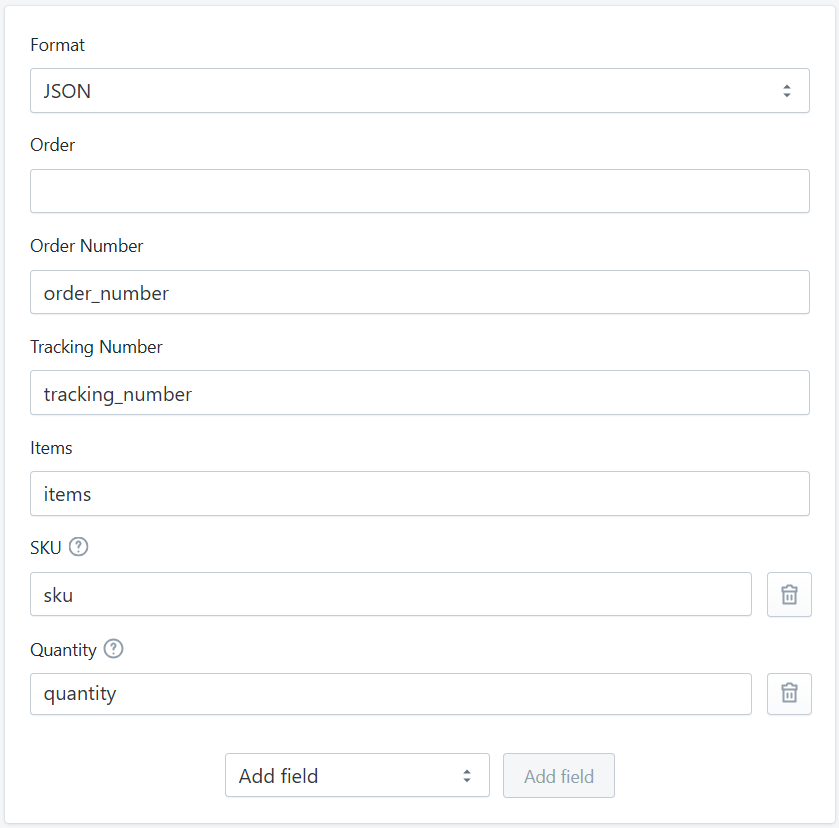
* [JSON](/data-mapping/update-order-tracking-from-json)
* [Text](/data-mapping/update-order-tracking-from-text)
* XLS
* [XML](/data-mapping/update-order-tracking-from-xml)


# FAQ

Frequently Asked Questions

### What IP address does Fulfilleo use for FTP connections?

Fulfilleo connects to FTP servers from the IP address **165.227.252.217**. If your supplier's server is protected by a firewall, ask them to whitelist this address so that incoming connections from it are allowed.

### Where can I see or edit the email that is send to the customer?

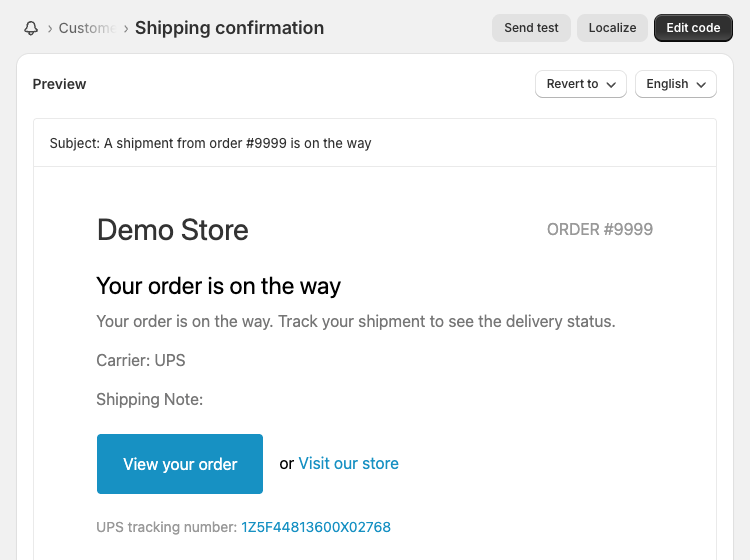
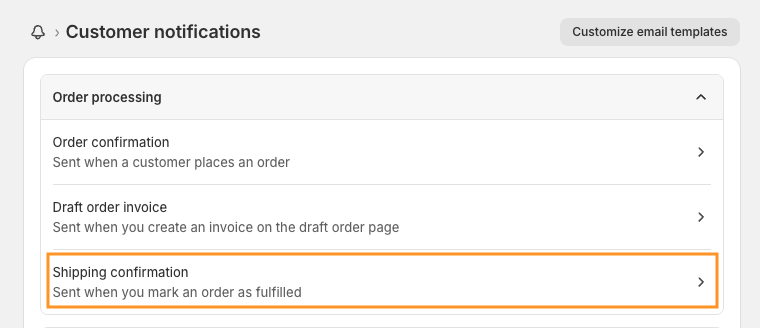
Fulfilleo sends the tracking numbers to customers using the Shopify's shipping confirmation email. You can preview and edit the email template in your store settings (Settings > Notifications > Customer notifications > [Shipping confirmation](https://shopify.com/admin/email_templates/shipping_confirmation/preview)).

<figure><img src="/files/sxabKblVihHggY3QW3hx" alt=""><figcaption><p>Customer notifications order processing templates</p></figcaption></figure>

<figure><img src="/files/9efnNq3b1OBZb5u4RJXV" alt=""><figcaption><p>Shipping confirmation email preview</p></figcaption></figure>


# FTP(S)

Fulfilleo can connect to an FTP server to automatically fetch tracking files from your supplier. Three protocols are supported:

## Connection Setup

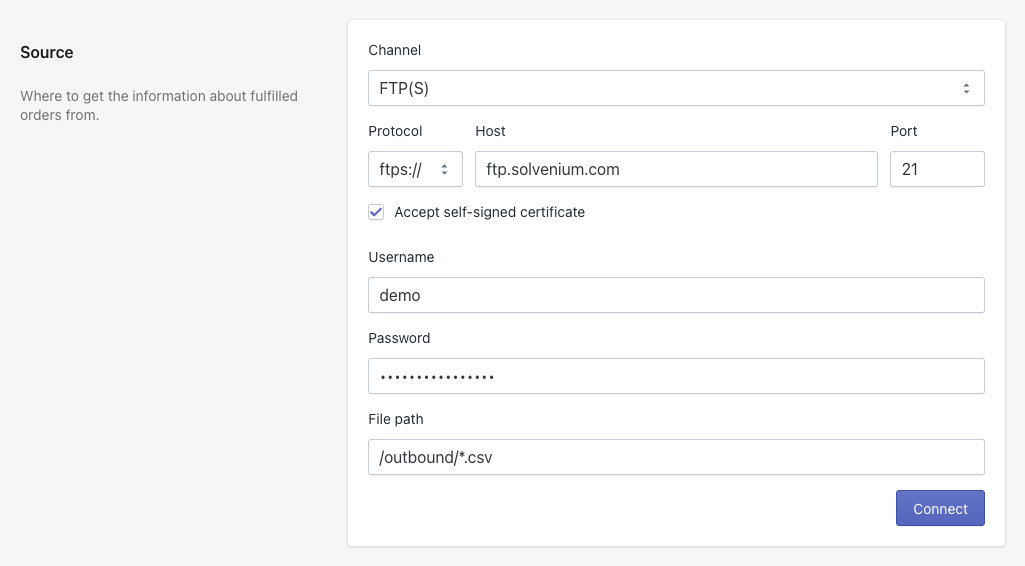
<figure><img src="/files/IPWDufbDjDYDhifrl5jq" alt="FTP(S) source channel settings with all fields filled in"><figcaption><p>FTPS connection settings</p></figcaption></figure>

### Protocol

Choose `ftp://`, `ftps://`, or `sftp://`. Changing the protocol automatically updates the default port.

<table><thead><tr><th width="105.07421875">Protocol</th><th width="549.70703125">Description</th><th>Default port</th></tr></thead><tbody><tr><td><strong>ftp://</strong></td><td>Standard, unencrypted FTP. Credentials and file data are transmitted in plain text.</td><td>21</td></tr><tr><td><strong>ftps://</strong></td><td>FTP over TLS (encrypted). Fulfilleo handles both explicit and implicit TLS automatically. If your server uses a self-signed certificate, enable the <strong>Accept self-signed certificate</strong> option.</td><td>990</td></tr><tr><td><strong>sftp://</strong></td><td>SFTP over SSH — a completely separate protocol from FTP/FTPS. Supports <strong>password</strong> and <strong>private key</strong> authentication.</td><td>22</td></tr></tbody></table>

### Host

Hostname or IP address of the server (e.g. `files.example.com`).

### Port

Port number. Defaults: `21` for FTP, `990` for FTPS, `22` for SFTP.

### Accept self-signed certificate

FTPS only. Enable this option if the server uses a self-signed TLS certificate.

### Username

Your FTP/SFTP login name.

### Password

Password for FTP, FTPS, and SFTP with password authentication.

### Private Key

SFTP with private key authentication only. Paste the full contents of your OpenSSH private key (beginning with `-----BEGIN OPENSSH PRIVATE KEY-----`). The server must have the corresponding public key in its `authorized_keys` file.

### File path

The **File path** field tells Fulfilleo where to look for tracking data. It supports three formats, each producing different processing behaviour.

#### Static path

A fixed path to a single file.

```
/outbound/tracking.csv
```

Fulfilleo checks whether the file has been **modified** since the last run. If the file has not changed, it is skipped and the run is recorded as `File already processed`. If it has changed, the file is downloaded and processed.

#### Wildcard path

A path with `*` or `?` wildcards in the filename.

```
/outbound/tracking_*.csv
```

Fulfilleo lists the directory and matches all filenames against the pattern (case-insensitive). For each matching file it checks the modification time and only processes files that are newer than the previous run. Multiple files can be processed in a single run.

#### Per-order path (Liquid template)

A path that contains Liquid variables referencing the Shopify order.

```liquid
/outbound/{{ order.name }}.csv
/outbound/{{ order_number }}/tracking.csv
```

When the file path contains order variables, Fulfilleo switches to **per-order mode**: it fetches all unfulfilled Shopify orders and looks for a dedicated file for each one. This is useful when your supplier places each order's tracking data in a separate file named after the order.

The following variables are available in the file path template:

| Variable                               | Value                                               |
| -------------------------------------- | --------------------------------------------------- |
| `{{ order.id }}`                       | Shopify internal order ID (numeric)                 |
| `{{ order.name }}`                     | Order name as shown in Shopify admin (e.g. `#1234`) |
| `{{ order.number }}`                   | Order sequence number (numeric)                     |
| `{{ order.order_number }}`             | Same as `order.number`                              |
| `{{ order_id }}`                       | Same as `order.id`                                  |
| `{{ order_name }}`                     | Same as `order.name`                                |
| `{{ order_number }}`                   | Same as `order.order_number`                        |
| `{{ order.metafields.namespace.key }}` | Value of a specific order metafield                 |

{% hint style="info" %}
Liquid variables and wildcards can be combined. For example, `/outbound/{{ order.name }}*.csv` matches files whose names start with the order name.
{% endhint %}

**Per-order processing outcome per order:**

* File not found on the server → recorded as a **warning**.
* File found but contains no tracking data → recorded as a **warning**.
* File found and tracking data extracted → fulfillment update is scheduled.
* Any other error → recorded as an **error**.

## Firewall Whitelist

Fulfilleo connects to your FTP server from a fixed IP address. If your supplier's server is protected by a firewall, you or your supplier will need to whitelist the following IP:

```
165.227.252.217
```

Pass this address to whoever manages the FTP server so they can allow incoming connections from it.

## Connecting and Testing

After filling in all fields, click **Connect**. Fulfilleo will:

1. Establish a connection to the server.
2. Save the credentials.
3. If the file path points to a CSV or XLSX file, download it and detect the column names — these will be available to select in the **Data Mapping** section.

If the file is not found at the given path, the connection still succeeds but a warning is shown next to the **File path** field. You can proceed with saving and Fulfilleo will look for the file again at the next scheduled run.

Once connected, the **Edit** button appears and all fields become read-only. Clicking **Edit** unlocks the fields so you can update the connection details.


# HTTP(S)

Fulfilleo can fetch tracking data from any HTTP endpoint — a supplier's REST API, a SOAP service, or a plain feed URL. You provide the URL, choose a request method, and optionally configure authentication and custom headers.

## Request Settings

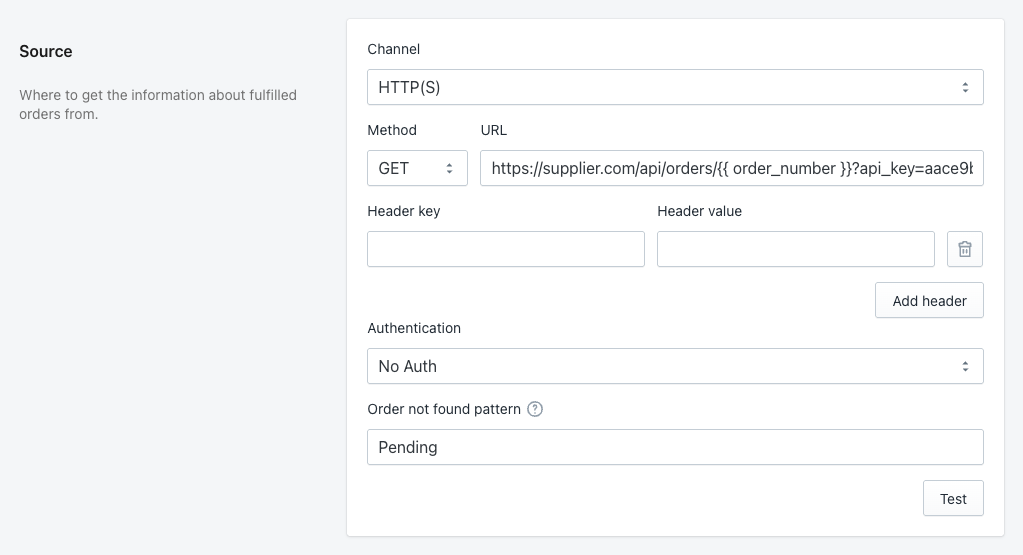
<figure><img src="/files/jtjUz4az3UVPjuNdLROz" alt="HTTP(S) source channel settings showing method, URL, headers, authentication, and order not found pattern fields"><figcaption><p>HTTP(S) source channel settings</p></figcaption></figure>

### Method

Choose **GET** or **POST**. Most APIs and feed URLs use GET. Select POST when the endpoint expects a request body (for example, a SOAP service or a JSON API that requires query parameters in the body).

### URL

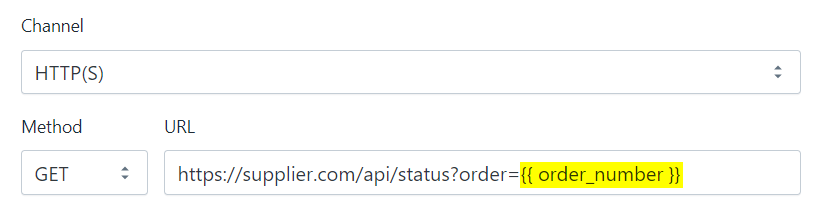
The endpoint Fulfilleo will call to retrieve tracking data. The URL can contain **variables** enclosed in double curly braces — these are replaced with actual values before the request is made.

The variables you use in the URL determine **how Fulfilleo fetches data**. There are two modes:

#### Per-order mode

When the URL contains an order-specific variable, Fulfilleo switches to **per-order mode**. It first retrieves all unfulfilled orders from your Shopify store, then sends a separate request for each order — replacing the variable with that order's value.

Example URLs:

```
https://supplier.com/api/tracking/{{order_number}}
https://supplier.com/api/orders/{{order.name}}/status
https://supplier.com/api/tracking?order={{order.id}}
```

Available order variables:

| Variable                               | Value                                               |
| -------------------------------------- | --------------------------------------------------- |
| `{{ order.id }}`                       | Shopify internal order ID (numeric)                 |
| `{{ order.name }}`                     | Order name as shown in Shopify admin (e.g. `#1234`) |
| `{{ order.number }}`                   | Order sequence number (numeric)                     |
| `{{ order.order_number }}`             | Same as `order.number`                              |
| `{{ order.email }}`                    | Customer email address                              |
| `{{ order_id }}`                       | Same as `order.id`                                  |
| `{{ order_name }}`                     | Same as `order.name`                                |
| `{{ order_number }}`                   | Same as `order.order_number`                        |
| `{{ order.metafields.namespace.key }}` | Value of a specific order metafield                 |

**Per-order processing outcome per order:**

* Order endpoint returns tracking data → fulfillment update is scheduled.
* Order endpoint returns a response matching the "order not found" pattern, or HTTP 404 → recorded as a **warning**.
* Order endpoint returns a response but no tracking data can be extracted → recorded as a **warning**.
* Any other error → recorded as an **error**.

#### List mode

When the URL does **not** contain any order variables, Fulfilleo makes a single request (or multiple paginated requests) and expects the response to contain tracking data for many orders at once.

Example URLs:

```
https://supplier.com/api/tracking
https://supplier.com/feeds/tracking.csv
https://supplier.com/api/tracking?page={{page}}
```

**Pagination** — If your supplier's API returns results across multiple pages, include the `{{ page }}` variable in the URL. Fulfilleo will start at page 1, increment the page number after each request, and keep fetching until the response stops changing or 100 pages are reached.

{% hint style="info" %}
The `{{ page }}` variable supports Liquid filters. For example, if the API uses zero-based page numbering, use `{{ page | minus: 1 }}`.
{% endhint %}

Additional list mode variables:

| Variable                                        | Value                                                       |
| ----------------------------------------------- | ----------------------------------------------------------- |
| `{{ page }}`                                    | Current page number (starts at 1)                           |
| `{{ oldest_unfulfilled_order_created_at_utc }}` | Creation date of the oldest unfulfilled order in UTC format |

### Body (POST only)

When the method is set to POST, a **Body** field appears where you can enter the request payload. This is typically JSON or XML, depending on what the endpoint expects.

### Headers

You can add custom HTTP headers to the request. Each header consists of a **key** and a **value**. Click **Add header** to add more. Headers are useful for setting content types, API keys, or any other custom values required by the endpoint.

## Authentication

Fulfilleo supports four authentication methods:

### No Auth

No authentication is sent with the request. Use this for public endpoints or when authentication is handled in another way — for example, through a custom header or an API key passed directly in the URL as a query parameter (e.g. `https://supplier.com/api/tracking?api_key=YOUR_KEY`).

### Basic Auth

Standard HTTP basic authentication. Enter a **username** and **password**, and Fulfilleo will send them as an `Authorization: Basic ...` header with each request.

### Bearer Token

Token-based authentication. Enter the **token** value, and Fulfilleo will include it as an `Authorization: Bearer ...` header.

### Request

Use this when the API requires a separate authentication step before the main request — for example, when you need to call a login endpoint first to obtain a temporary token.

Configure the authentication request:

1. Choose the **Method** (GET or POST).
2. Enter the **Auth URL** — the endpoint that returns the authentication token.
3. For POST requests, select the **Content Type** and enter the **Body** (e.g. JSON with your API credentials).

After saving, Fulfilleo will first call the Auth URL, then use the response in the main request. Reference the authentication response in the main request URL or headers using the `{{ auth }}` variable. If the authentication response is JSON, you can reference specific fields — for example, `{{ auth.token }}` or `{{ auth.access_token }}`.

## Order Not Found Pattern

This field appears only in **per-order mode**. Some APIs return a successful HTTP response (status 200) even when an order is not found, but include a specific text in the response body — for example, `"Order does not exists"`.

Enter that text here so Fulfilleo can recognize it and skip the order instead of treating the response as valid tracking data. This is also useful when the order exists in the supplier's system but has not been shipped yet — the API may return a response like `"Pending"` or `"<CurrentStatus>Undefined</CurrentStatus>"` instead of tracking data.

{% hint style="info" %}
If the API returns HTTP status **404** for missing orders, you do not need to set this field — Fulfilleo handles 404 responses automatically.
{% endhint %}

## Testing

Click the **Test** button to send a test request and see the response. This helps verify that the URL, authentication, and headers are configured correctly before saving. The response status code and body are displayed below the button.


# Filters

In Fulfilleo, you can filter which orders should be fulfilled on both the feed side and the Shopify side. This ensures only the right orders and items are fulfilled.

### **Feed Data Filter**

This filter lets you choose orders based on specific details from a feed field, node, or column.

Here are some **sample use cases** for the **Feed Data Filter**:

**Filtering orders from multiple stores**\
If your feed contains orders from different stores, you can process only those with a specific prefix (e.g., orders starting with "UK-" for the UK store).

<figure><img src="/files/BDf0uEm5xOs0CC5jIRXo" alt="Fulfilleo Feed Data filter settings — filtering orders by order number prefix"><figcaption><p>Fulfilleo Feed Data filter</p></figcaption></figure>

**Skipping missing order**\
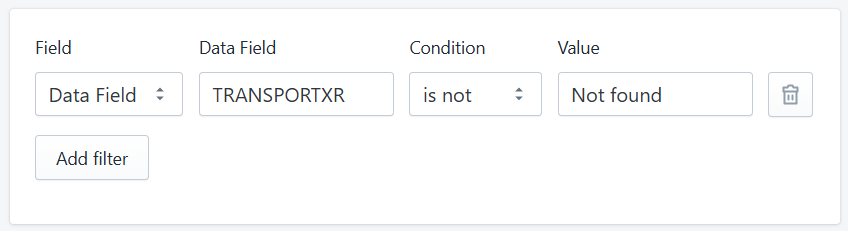
When fulfilling a single order via API, you can avoid unnecessary messages in the History section about orders that weren't found. This applies to cases where the API returns a 200 status along with a specific message indicating that the order wasn't found.

<figure><img src="/files/Y0JWTjWYIzRPTB5W07od" alt="Fulfilleo Feed Data filter settings used to exclude orders not found in Shopify"><figcaption><p>Fulfilleo Feed Data filter</p></figcaption></figure>

### **Item Location**

Only fulfill items from an order that are stocked at a specific location.

<figure><img src="/files/9TNN5EmH0qgTPPnbfsOf" alt="Fullfill items only from a specific location with Fulfilleo"><figcaption><p>Fulfilleo Item Location filter</p></figcaption></figure>

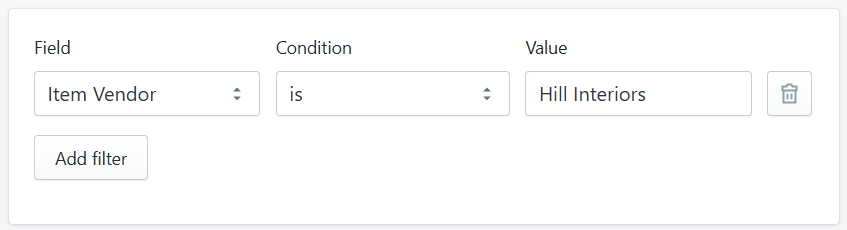
### **Item Vendor**

Only fulfill ordered items from a specific vendor.

<figure><img src="/files/svG6WbUvUSTtybxstJDh" alt="Fullfill items only from a specific vendor with Fulfilleo"><figcaption><p>Fulfilleo Item Vendor filter</p></figcaption></figure>

### **Order Tags**

Only fulfill orders that have certain tags assigned.

<figure><img src="/files/0OrLaWkK6wPSQ9D6Lq7S" alt="Only fulfill orders if tracking info is included in the feed"><figcaption><p>Fulfilleo Order Tag filter</p></figcaption></figure>

### **Tracking Number**

Only fulfill orders that have a tracking number in the feed. If not added, orders can be fulfilled even without a tracking number.

<figure><img src="/files/1TBWn5IL1PvouWfIdHKm" alt=""><figcaption><p>Fulfilleo Tracking Number filter</p></figcaption></figure>

### **Tracking URL**

Only fulfill orders that include a tracking URL in the feed.

<figure><img src="/files/gouEHFz1bXu2uhZ0N6X9" alt=""><figcaption><p>Fulfilleo Tracking URL filter</p></figcaption></figure>


# Notifications

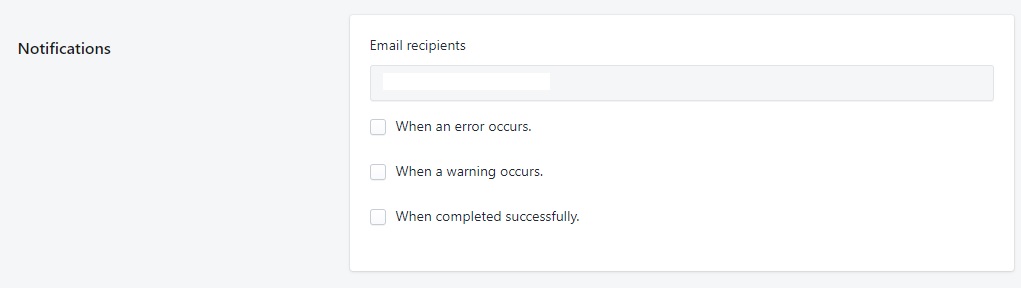
Fulfilleo allows for sending email notifications based on the status of fulfillment.

<figure><img src="/files/48BgSMgDnMpuWRSWPvtg" alt=""><figcaption><p>Notification settings</p></figcaption></figure>

To set the notifications you need to enter an email address in the 'Email recipients' text area. Then select one or more available options of when the notification should be sent. Then save the settings.

#### When error occurs

Notification is sent whenever the fulfillment of the orders fail.

#### When a warning occurs

Notification is sent whenever the fulfillment of the orders ends in warning. Than can happen in two cases:

* Source files contain fulfillment information about orders that don't exist in Shopify.
* Source files contain fulfillment information about multiple orders and some fulfillments end successfully while others fail.

#### When completed successfully

Notification is sent when orders are succesfully fulfilled.


# Post-processing

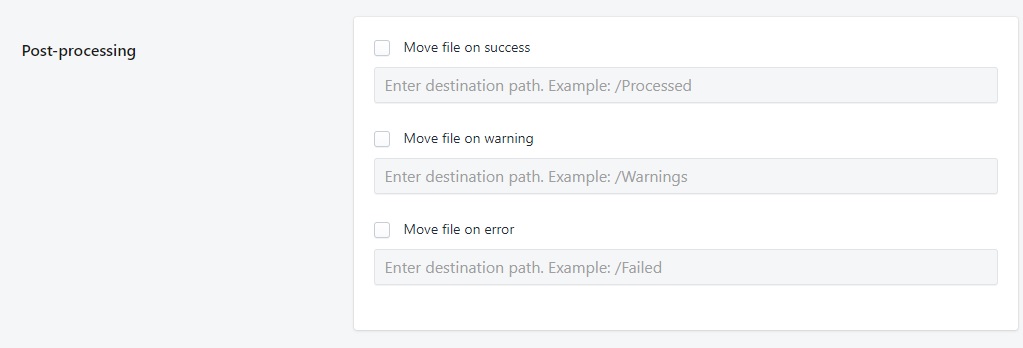
Fulfilleo allows for moving the source files based on the status of the fulfillment. The option of moving files is available only when the source channel is set to FTP.

<figure><img src="/files/qMN3IrIiwR3jTlJtXlH0" alt=""><figcaption><p>Post-processing settings</p></figcaption></figure>

#### Move file on success

Allows for moving the source files to a specified directory whenever the orders are successfully fulfilled. To set that configuration you need to check the 'Move file on success' checkbox and enter the file destination path in the text area below. Then save the settings.

#### Move file on warning

Allows for moving the source files to a specified directory whenever the fulfillment of orders ends with status 'Warning'. That can happen in two cases:

* Source files contain fulfillment information about orders that don't exist in Shopify.
* Source files contain fulfillment information about multiple orders and some fulfillments end successfully while others fail.

To set that configuration you need to check the 'Move file on warning' checkbox and enter the file destination path in the text area below. Then save the settings.

#### Move file on error

Allows for moving the source files to a specified directory whenever the fulfillment of the orders fails. To set that configuration you need to check the 'Move file on error' checkbox and enter the file destination path in the text area below. Then save the settings.


# Update order tracking from CSV

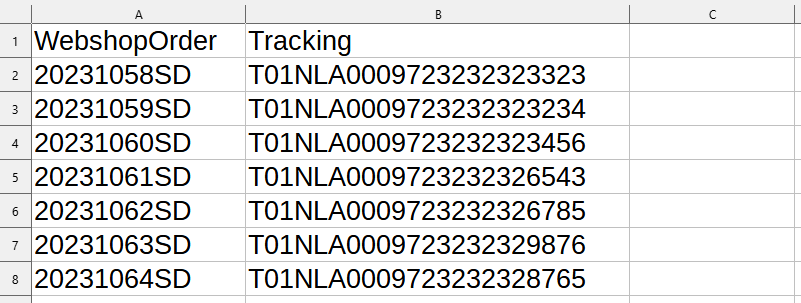
With Fulfilleo you can automatically mark both entire Shopify orders and individual items as fulfilled with a tracking number based on a sheet from your supplier.

Basic setup for fulfilling the entire order

In order to fulfill all items in the order, you need only its number and a tracking number.

<div data-full-width="false"><figure><img src="/files/xcBHIvudtXfYePYAA1qW" alt="Order and tracking numbers in the sheet from the supplier" width="563"><figcaption><p>Order and tracking numbers in the sheet from the supplier</p></figcaption></figure></div>

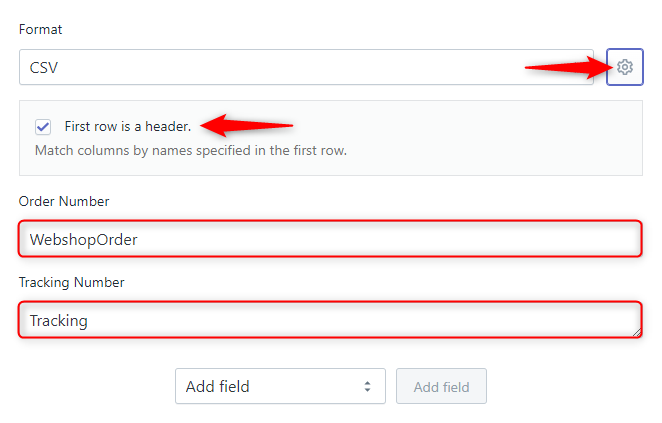
For the above example, use the following settings in the **Data Mapping** section. The first row contains the column names, so click on the gear icon and check the option **First row is a header**.

<figure><img src="/files/D6RBmpkKkyIQi6JTqBMm" alt=""><figcaption><p>Basic settings to fulfill all items for CSV file</p></figcaption></figure>

### Fulfill part of order based on vendor

When items in an order come from different vendors, you can create fulfillment automations for each vendor. In that case, set the Item Vendor filter, and enter vendor name in the empty field. This way, the order items will be divided into multiple shipments according to the product vendor.

<figure><img src="/files/viXY5zP24DNadW07kR0H" alt=""><figcaption><p>Setting fulfillment based on vendor</p></figcaption></figure>

### Fulfill each line item separately

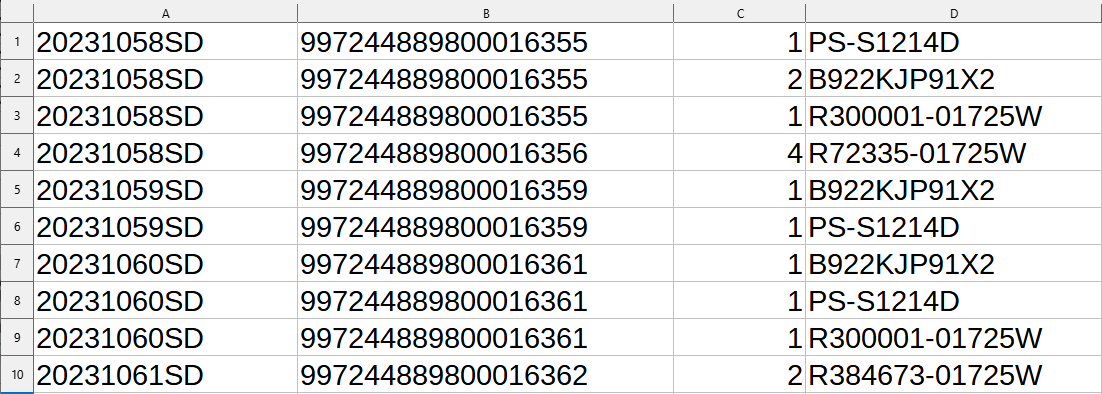
It may happen that an order is divided into multiple shipments. In such case the sheet from a supplier looks something like this:

<figure><img src="/files/CNOuZxFhgKiqfPLggLbq" alt="Sheet with each line item separately"><figcaption><p>Sheet with each line item separately</p></figcaption></figure>

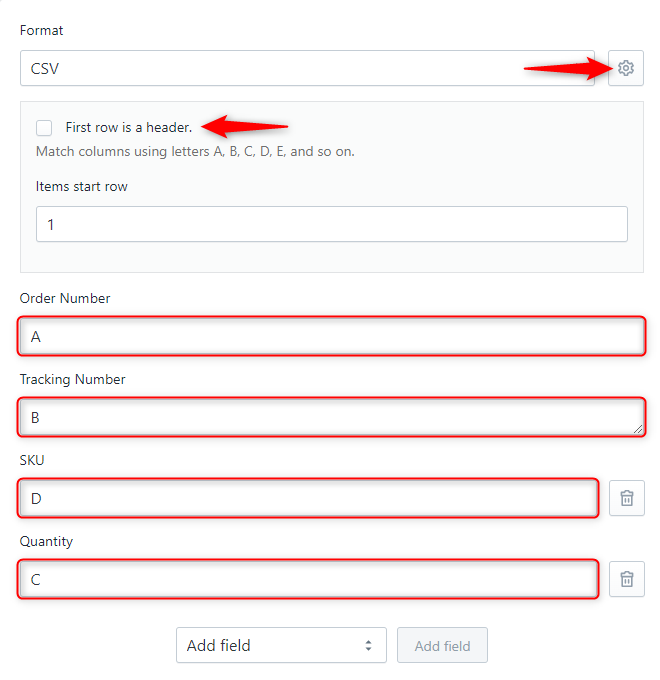
In the above sheet, column **A** is the **order number**, **B** contains **tracking numbers**, **C** is the **quantity**, and **D** is the **SKU**. The item list starts with the first row. The **Items start row** field will appear when you select the option that **SKU** is to be taken from a specific **column**. Configure your Data Mapping section as follows:

<figure><img src="/files/JaRxH9tb3LHxcFoq1ltr" alt=""><figcaption><p>Fulfilleo settings for CSV when each line item should be fulfilled separately</p></figcaption></figure>

### Extract data from a specific cell in CSV

Referring to a specific cell in a spreadsheet can be applied in the following fields: **Order Number**, **Tracking Number** and **Tracking Company**.

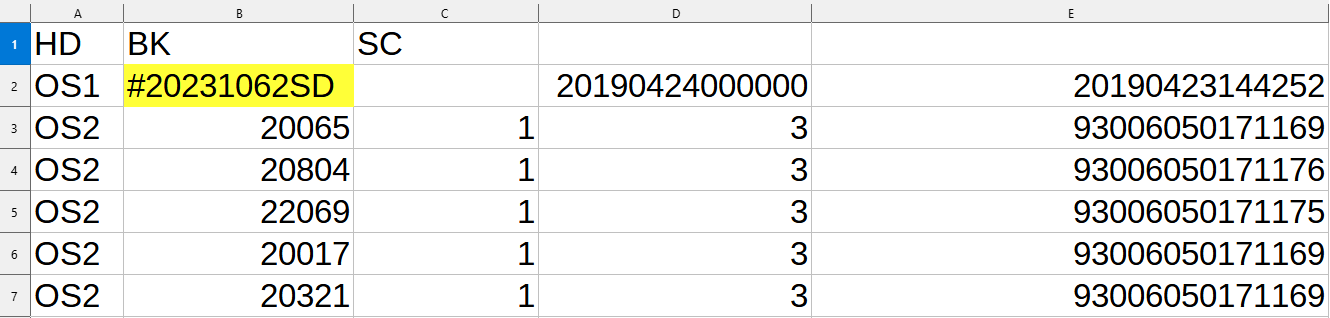
For example, in the following sheet, the order number (yellow) is in cell **B2**.

<figure><img src="/files/jeUsa1LUjR8xB2YH3EZ8" alt="Order number provided in the specific cell in the sheet annotated"><figcaption><p>Order number provided in the specific cell in the sheet</p></figcaption></figure>

There are two ways to extract it from this cell.

#### Extract data from a single cell using its address

The first method is providing the cell address using its column and row indexes. So for the above example, enter **B2** in the **Order Number** field in the **Data Mapping** section:

<figure><img src="/files/jEpCcsLjE6sblLfXUzG2" alt=""><figcaption><p>Refer to the specific cell using its address - Fulfilleo settings</p></figcaption></figure>

#### Extract data from a single cell using Liquid

Another way is to use the **rows** variable in the desired field. Please note that arrays in Liquid are indexed starting from 0, so the **B2** address with the Liquid syntax will look like this:

{% tabs %}
{% tab title="Fulfilleo setting" %}

<figure><img src="/files/iWKacPhjVtzhUX275Rwe" alt="How to refer to the specific cell using Liquid - Fulfilleo settings"><figcaption><p>Refer to the specific cell using Liquid - Fulfilleo settings</p></figcaption></figure>
{% endtab %}

{% tab title="Copy this setting" %}

```
{{ rows[1]["B"] }}
```

{% endtab %}
{% endtabs %}

#### Set the row from which the items start

If you want Fulfilleo to fuflil specific items, omit rows that do not contain tracking data. In the example below tracking data for individual items starts from row number 3 (red: **SKU**, green: **quantity**, blue: **tracking number**).

<figure><img src="/files/rvvGUOlgQBsBBvxsFcbI" alt="List of items to be fulfilled that starts from the row 3 annotated"><figcaption><p>List of items to be fulfilled that starts from the row 3</p></figcaption></figure>

Select the row number from which starts the list of items to be fulfilled.

<figure><img src="/files/NzcEgG2NFjaxE6wff8rd" alt="How to set offset in the Fulfilleo"><figcaption><p>Set offset in the Fulfilleo</p></figcaption></figure>

This option is available only if you have not selected to fulfil all items.


# Update order tracking from JSON

Fulfilleo enables you to sync tracking numbers and fulfill orders via your supplier's API.

If your supplier provides order tracking data through an API, you can use it to fulfill orders in Shopify. Typically, the data is shared in JSON format. Here’s an example of what the API response might look like:

```json
{
    "order_number": "#4417",
    "tracking_number": "1234567890",
    "items": [
      {
        "sku": "SKU12345",
        "quantity": 1
      },
      {
        "sku": "SKU54321",
        "quantity": 2
      }
    ]
  }
```

In this scenario, configure the following settings in the Data Mapping section:

<figure><img src="/files/5HUKBPGZLa7jKg78T5SD" alt=""><figcaption><p>Data Mapping section in Fulfilleo for JSON file</p></figcaption></figure>

In scenarios where data retrieval is required from a field higher in the JSON hierarchy, you can utilize the variables `order` and `shipment`.

* `order`: contains details about a single order from the API
* `shipment`: contains details about a single shipment from the API (only available if the Shipment field is included in the Data Mapping section)

### Fulfill single orders

Some suppliers require the order number to be included in the URL when making a request. Fulfilleo supports these cases by iterating through all unfulfilled and partially fulfilled orders to check if the supplier has provided tracking data.

<figure><img src="/files/e1EARCVMyU67eYFUTiK9" alt=""><figcaption><p>Order number variable in URL</p></figcaption></figure>

You can include the following variables in the URL:

* `{{ order_number }}`
* `{{ order_id }}`
* `{{ order_email }}`
* `{{ order.metafields.<namespace>.<key> }}`

In this mode, you can utilize the `context` object in the Data Mapping section. The `context` object provides the following structure and contains key details about the order from Shopify:

```json
{
    "order": {
        "id": 1234567890123,
        "created_at": "2025-01-01T00:00:00+01:00",
        "email": "test@test.com",
        "name": "#D1263",
        "number": 263,
        "order_number": 1263,
        "tags": ""
    },
    "order_id": 1234567890123,
    "order_name": "#D1263",
    "order_number": 1263
}
```

Sometimes, the API response might not include the order number required in the **Data Mapping** section. In such cases, you can use `{{ context.order.order_number }}` or `{{ context.order_number }}` to provide the necessary order number.

<figure><img src="/files/lkCTwiY2aIBDE6XuUzZR" alt=""><figcaption><p>Order Number from <code>context</code> object</p></figcaption></figure>


# Update order tracking from Text

With Fulfilleo you can fulfill orders or individual items based on data extracted from plain text.

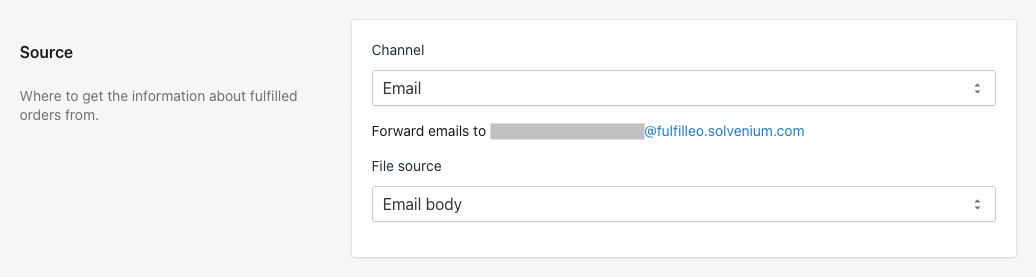
If tracking information is included in the body of an email, not as an attachment, you can extract this information, by setting the Channel to **Email**, and the File source to **Email body**.

<figure><img src="/files/7Od3FG3y5l5MEJduLnOB" alt=""><figcaption><p>Setting file source to email body</p></figcaption></figure>

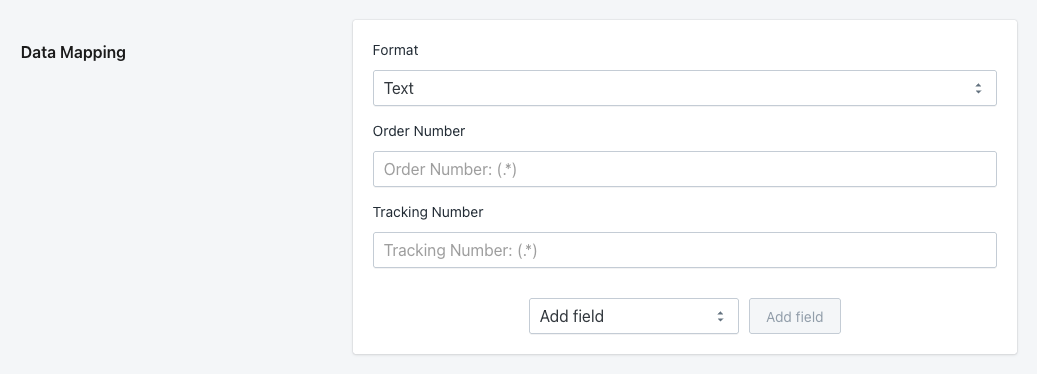
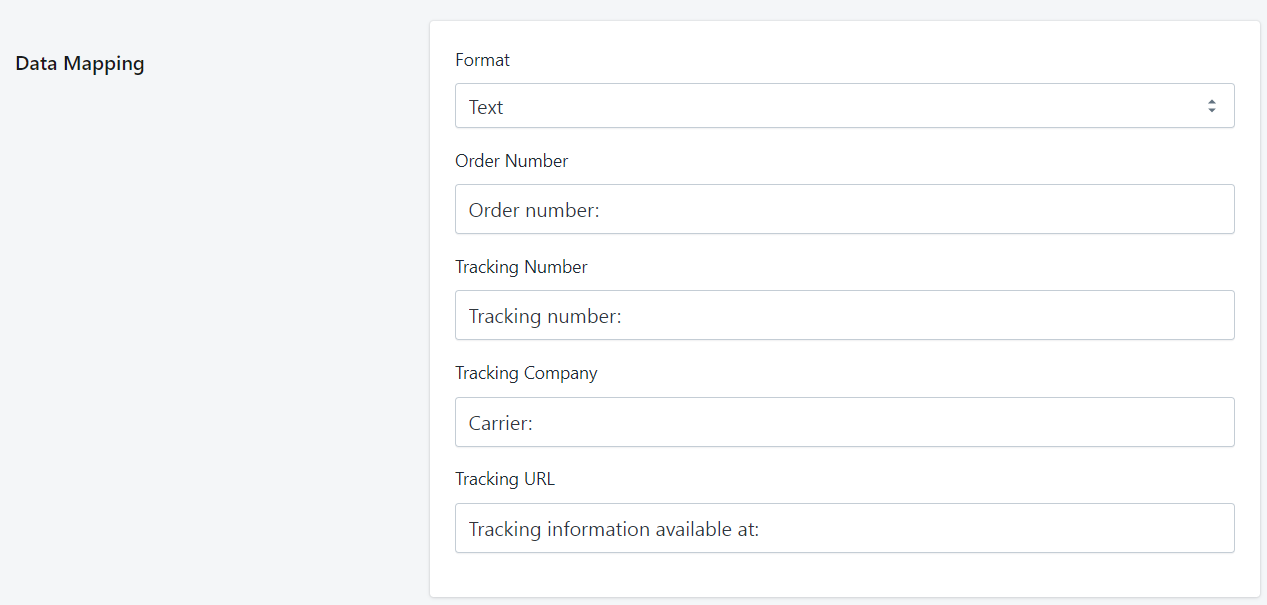
In Data Mapping section you need to set Format to **Text**, and specify mapping for Order Number, and Tracking Number. Optionally, you can add Tracking Company, Tracking URL, SKU, and Quantity fields. In order to fill those fields, you need to provide regular expressions that will match text contents of the email that the automation will process.

{% hint style="warning" %}
All emails to be processed by Fulfilleo automation must have a consistent format.
{% endhint %}

<figure><img src="/files/zMhUUvMaDaJNYqGsIBSO" alt=""><figcaption><p>Data Mapping section of Fulfilleo automation</p></figcaption></figure>

#### Example

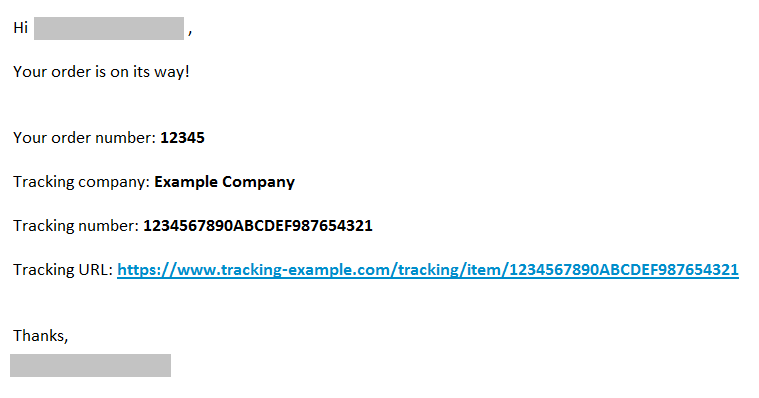
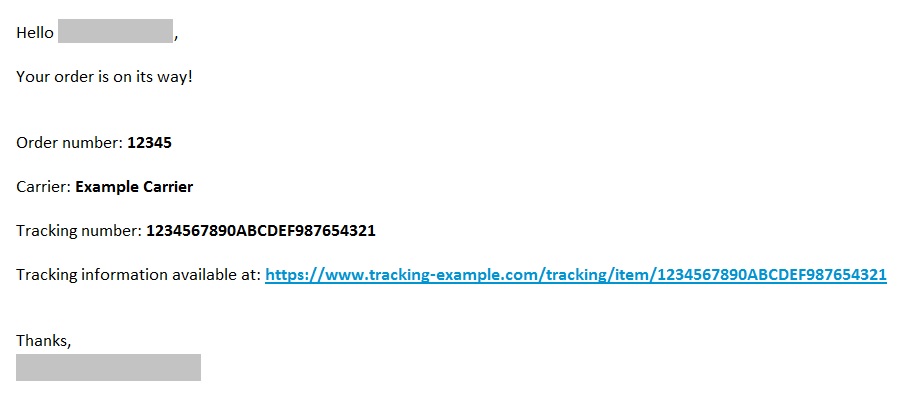
Consider an email in the following format:

<figure><img src="/files/xtm1UCgWOCCeHBwmy2QP" alt=""><figcaption><p>Email example</p></figcaption></figure>

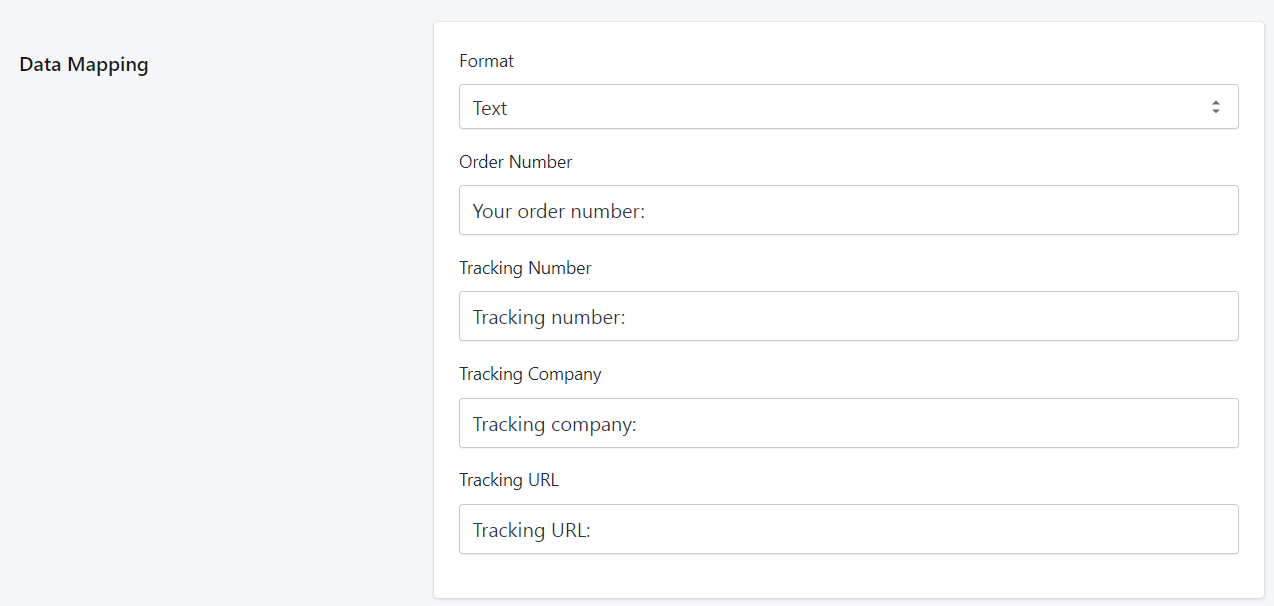
To create regular expressions that will match the contents of the email above, you simply need to enter the whole line that precedes the actual value to be extracted.

<figure><img src="/files/Mm96zsGAPG5sQpLoYx8b" alt=""><figcaption><p>Data mapping for the example email</p></figcaption></figure>

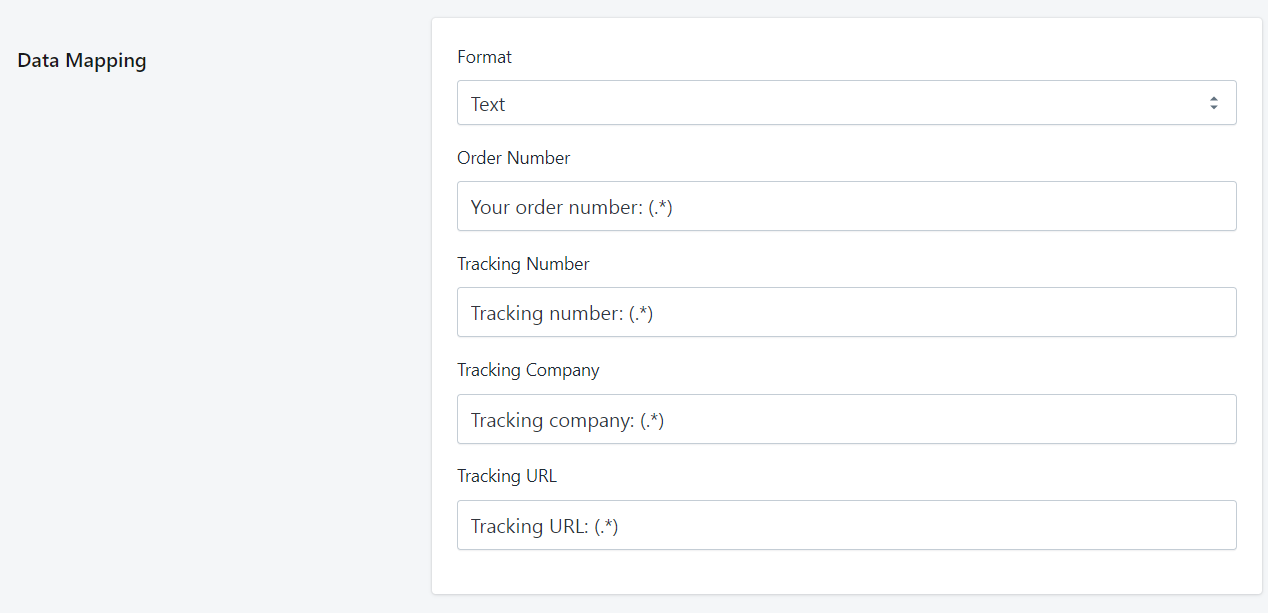
Fulfilleo automatically adds a *capturing group* in brackets at the end of every Data Mapping element. It is responsible for extracting the concrete information from the surrounding text. The capturing group expression added by Fulfilleo is *(**.\***)*, which is the most generic expression, allowing a match regardless of the data format. You can add that capturing group explicitly, but it isn't necessary as it is added automatically under the hood.

<figure><img src="/files/tvG2hOSIp6fxhLn0nLv0" alt=""><figcaption><p>Data mapping with capturing groups included</p></figcaption></figure>

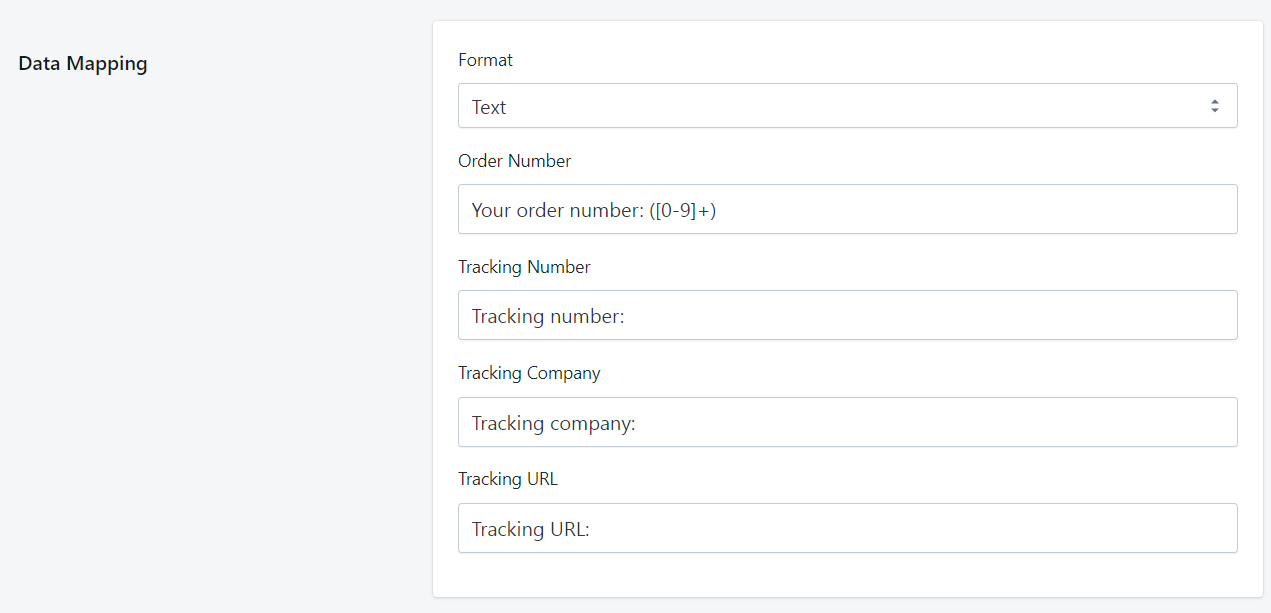
You can specify a different capturing group based on the data format for particular Data Mapping element. In the example above, the order number is expressed only with digits, doesn't have any letters or special characters. In that case, we can specify the capturing group in such a way that it will only match actual numbers: *(**\[0-9]+**).* When you're specifying a different capturing group, you must include it in the Data Mapping field explicitly.

<figure><img src="/files/XjQh3NuBOiOKEbBUTgnt" alt=""><figcaption><p>Data mapping section with specified capturing group</p></figcaption></figure>

#### Example

Let's consider an email with a different format.

<figure><img src="/files/jpViysavfdBoXMU9B744" alt=""><figcaption><p>Different email format example</p></figcaption></figure>

Once again we have to provide each line of text preceding the concrete data. It is crucial that the text is identical, you have to be careful not to add additional spaces or change the letter cases.

<figure><img src="/files/g99XoaQrhbAzGdEXSbZu" alt=""><figcaption><p>Data Mapping section for a different email format</p></figcaption></figure>


# Update order tracking from XML

How to sync tracking numbers from XMLs to fulfill orders in your Shopify store.

To pull tracking numbers from an XML file, you need to set up the Data Mapping section so that Fulfilleo knows where to get particular information like order number or tracking number.

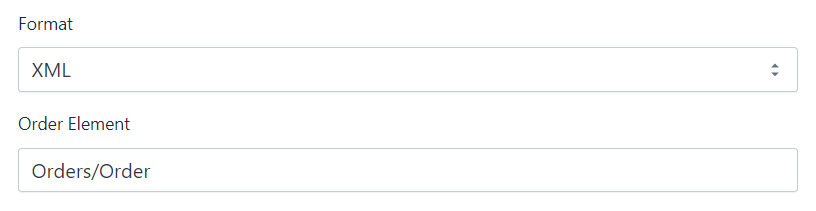
The first step is to specify an order node that includes all information about a single order.

For example, if your XML looks like this:

```xml
<Orders>
    <Order>
        <Number>1020</Number>
        <TrackingNumber>ABC123</TrackingNumber>
    </Order>
    <Order>
        <Number>1021</Number>
        <TrackingNumber>DEF456</TrackingNumber>
    </Order>
</Orders>
```

provide `Orders/Order` in Order Element.

<figure><img src="/files/IbZm7i63Ry1vV18UX1MP" alt=""><figcaption><p>XML data mapping - Order Element</p></figcaption></figure>

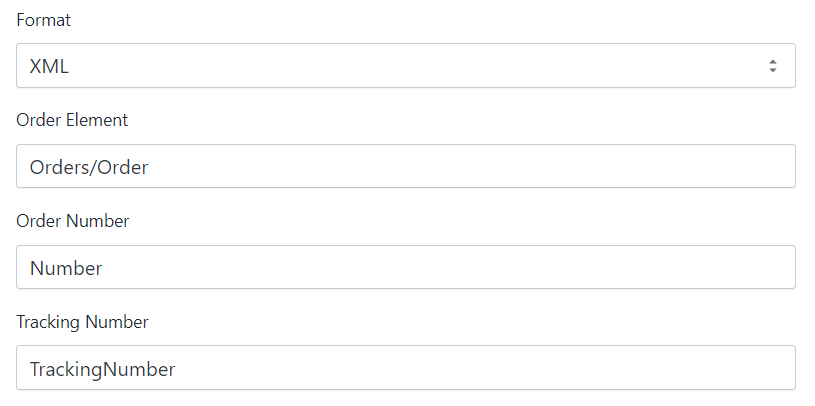
In a minimal setup, you also need to specify the Order Number and Tracking Number nodes. Their paths are relative to the Order node. Taking the same example XML from above, provide `Number` in Order Number and `TrackingNumber` in the Tracking Number field.

<figure><img src="/files/dhvpD1GD53u5LUM7YArg" alt=""><figcaption><p>XML data mapping - Order Number and Tracking Number</p></figcaption></figure>

By default, the app fulfills all ordered items. If an XML file contains information which items have been shipped you can instruct Fulfilleo to fulfill only them.

Let's assume the XML file looks like below:

```
<Order>
    <Number>1020</Number>
    <TrackingNumber>ABC123</TrackingNumber>
    <Items>
        <Item>
            <Sku>DP1-BLUE</Sku>
            <Quantity>1</Quantity>
        </Item>
        <Item>
            <Sku>DP2</Sku>
            <Quantity>1</Quantity>
        </Item>
    </Items>
</Order>
```

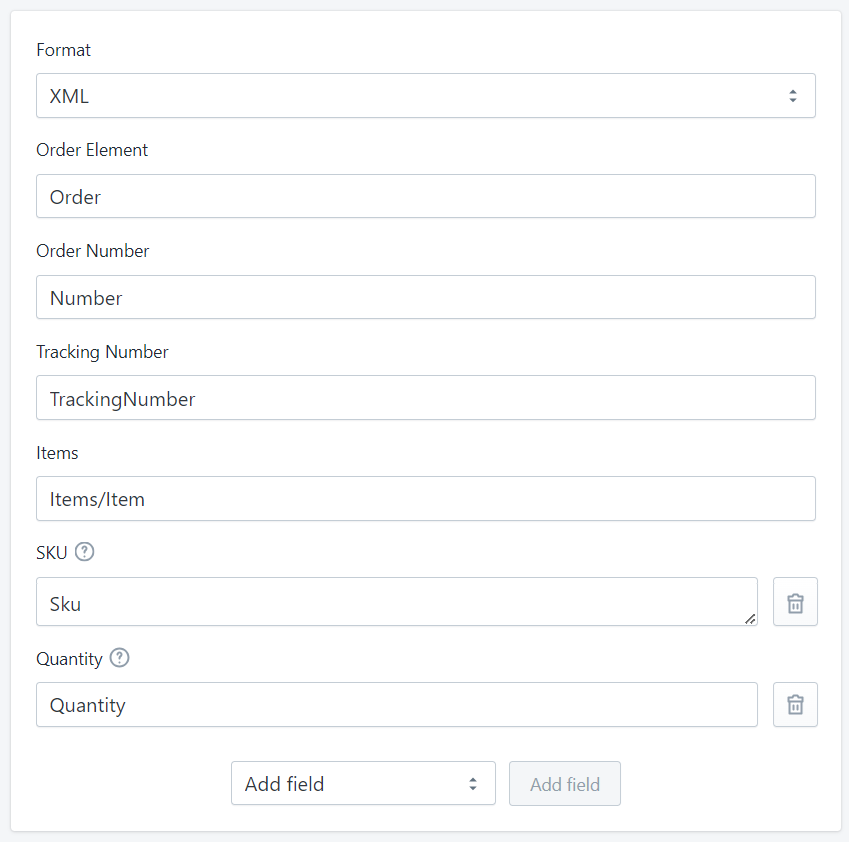
Then the Items field should point to a node with a single item, in this case `Items/Item`. You also need to define how to get the item's SKU, and optionally Quantity. In our current example, it is `Sku` and `Quantity`.

<figure><img src="/files/hIjErrQs3V1riQ43QCqU" alt=""><figcaption><p>XML data mapping - items, SKU and quantity</p></figcaption></figure>


# Custom tracking URLs

Shopify supports many different shipping carriers when adding a tracking number to an order.

![](/files/aPhwM49esRG3vQtUxVpC)

Your customers receive then an email with the tracking number linked to a website where they can check their package status.

Nevertheless, there are still shipping companies not recognized by Shopify. You can then enter a custom tracking URL.

Fulfilleo enables you to automate adding custom tracking URLs to your orders.

#### Fixed Tracking URL

If you work with a single shipping carrier, then you can define a fixed URL. Fulfilleo will append the tracking number at the end of the fixed URL.

![Set fixed tracking URL](/files/AToBqDjfCmLuYFQR93uH)

#### Variable Tracking URL

If you work with multiple carriers then you can specify a Liquid script that will generate a proper tracking URL based on the carrier name.

![Set variable tracking URL](/files/l4OiJQxey7ejncQdz9ro)

```liquid
{%- if trackingCompany == 'Box Runner' -%}
    https://boxrunner.test/status?number={{trackingNumber}}
{%- elsif trackingCompany == 'Speedy' -%}
    https://speedy.example/track?id={{trackingNumber}}
{%- endif -%}
```

You can also define rules to determine the tracking URL based on the tracking number format. For example, looking at the first three digits of the tracking number.

```liquid
{%- assign firstThreeDigits = trackingNumber | slice: 0, 3 %}
{%- if firstThreeDigits == '157' -%}
    https://www.dao.as/privat/find-din-pakke?stregkode={{trackingNumber}}
{%- elsif firstThreeDigits == '770' -%}
    https://www.postnord.dk/varktojer/track-trace?shipmentId={{trackingNumber}}
{%- endif -%}
```


# Tracking companies that can be automatically detected

Fulfilleo allows the name of the shipping company to be automatically detected by the shipping number. This feature relies on a function built into the Shopify API.

### The following tracking companies are displayed for shops located in any country:

* **4PX**
* **AGS**
* **Amazon Logistics UK**
* **Amazon Logistics US**
* **An Post**
* **Anjun Logistics**
* **APC**
* **Asendia USA**
* **Australia Post**
* **Bonshaw**
* **BPost**
* **BPost International**
* **Canada Post**
* **Canpar**
* **CDL Last Mile**
* **China Post**
* **Chronopost**
* **Chukou1**
* **Colissimo**
* **Comingle**
* **Coordinadora**
* **Correios**
* **Correos**
* **CTT**
* **CTT Express**
* **Cyprus Post**
* **Delnext**
* **Deutsche Post**
* **DHL eCommerce**
* **DHL eCommerce Asia**
* **DHL Express**
* **DoorDash**
* **DPD**
* **DPD Local**
* **DPD UK**
* **DTD Express**
* **DX**
* **Eagle**
* **Estes**
* **Evri**
* **FedEx**
* **First Global Logistics**
* **First Line**
* **FSC**
* **Fulfilla**
* **GLS**
* **Guangdong Weisuyi Information Technology (WSE)**
* **Heppner Internationale Spedition GmbH & Co.**
* **Iceland Post**
* **IDEX**
* **Israel Post**
* **Japan Post (EN)**
* **Japan Post (JA)**
* **La Poste**
* **Lasership**
* **Latvia Post**
* **Lietuvos Paštas**
* **Logisters**
* **Lone Star Overnight**
* **M3 Logistics**
* **Meteor Space**
* **Mondial Relay**
* **New Zealand Post**
* **NinjaVan**
* **North Russia Supply Chain (Shenzhen) Co.**
* **OnTrac**
* **Packeta**
* **Pago Logistics**
* **Ping An Da Tengfei Express**
* **Pitney Bowes**
* **Portal PostNord**
* **Poste Italiane**
* **PostNL**
* **PostNord DK**
* **PostNord NO**
* **PostNord SE**
* **Purolator**
* **Qxpress**
* **Qyun Express**
* **Royal Mail**
* **Royal Shipments**
* **Sagawa (EN)**
* **Sagawa (JA)**
* **Sendle**
* **SF Express**
* **SFC Fulfillment**
* **SHREE NANDAN COURIER**
* **Singapore Post**
* **Southwest Air Cargo**
* **StarTrack**
* **Step Forward Freight**
* **Swiss Post**
* **TForce Final Mile**
* **Tinghao**
* **TNT**
* **Toll IPEC**
* **United Delivery Service**
* **UPS**
* **USPS**
* **Venipak**
* **We Post**
* **Whistl**
* **Wizmo**
* **WMYC**
* **Xpedigo**
* **XPO Logistics**
* **Yamato (EN)**
* **Yamato (JA)**
* **YiFan Express**
* **YunExpress**

### The following tracking companies are displayed for shops located in specific countries:

* **Australia**: Australia Post, Sendle, Aramex Australia, TNT Australia, Hunter Express, Couriers Please, Bonds, Allied Express, Direct Couriers, Northline, GO Logistics
* **Austria**: Österreichische Post
* **Bulgaria**: Speedy
* **Canada**: Intelcom, BoxKnight, Loomis, GLS
* **China**: China Post, DHL eCommerce Asia, WanbExpress, YunExpress, Anjun Logistics, SFC Fulfillment, FSC
* **Czechia**: Zásilkovna
* **Germany**: Deutsche Post (DE), Deutsche Post (EN), DHL, DHL Express, Swiship, Hermes, GLS
* **Spain**: SEUR
* **France**: Colissimo, Mondial Relay, Colis Privé, GLS
* **United Kingdom**: Evri, DPD UK, Parcelforce, Yodel, DHL Parcel, Tuffnells
* **Greece**: ACS Courier
* **Hong Kong SAR**: SF Express
* **Ireland**: Fastway, DPD Ireland
* **India**: DTDC, India Post, Delhivery, Gati KWE, Professional Couriers, XpressBees, Ecom Express, Ekart, Shadowfax, Bluedart
* **Italy**: BRT, GLS Italy
* **Japan**: エコ配, 西濃運輸, 西濃スーパーエキスプレス, 福山通運, 日本通運, 名鉄運輸, 第一貨物
* **Netherlands**: DHL Parcel, DPD
* **Norway**: Bring
* **Poland**: Inpost
* **Turkey**: PTT, Yurtiçi Kargo, Aras Kargo, Sürat Kargo
* **United States**: GLS, Alliance Air Freight, Pilot Freight, LSO, Old Dominion, R+L Carriers, Southwest Air Cargo
* **South Africa**: Fastway, Skynet


# IFS Italy

You can use Fulfilleo to import tracking numbers of orders shipped by IFS Italy.

Here are the settings that you need to set up in Fulfilleo.

#### Schedule

Schedule the automation to run every hour at a selected minute.

![Schedule every hour](/files/uWZywfw1KaVaj1YxtGpO)

#### Source

* Channel: HTTP
* Method: GET
* URL: [https://backoffice.ifsitaly.com/api/v1/orders?page={{page}}\&origin=api\&api\_key=\<API\_KEY>](https://backoffice.ifsitaly.com/api/v1/orders?page={{page}}\&origin=api\&api_key=%3CAPI_KEY%3E)

{% hint style="info" %}
You need to replace \<API\_KEY> with the API Key that you received from IFS Italy.
{% endhint %}

![IFS Italy - source settings](/files/GPg60uB5yjPjNNHu3a4X)

#### Data mapping

Format: JSON

* Order (JSONPath): `$.orders`
* Order Number (JSONPath): `$.reference`
* Shipments (Ignore)
* Tracking Number: `$.tracking_code`
* Tracking Company (Fixed): IFS
* Tracking URL (JSONPath): `$.tracking_url`
* Items (JSONPath): `$.items`
* SKU (JSONPath): `$.sku`
* Quantity (JSONPath): `$.quantity`

![IFS Italy - data mapping](/files/uwQVvOoIFgLDaX6caQnn)

#### Filters

Make sure to add a filter "Tracking Number - is not empty". Otherwise the automation would also fulfill orders that haven't been shipped yet, and there would be no tracking numbers.

![](/files/64hjznbrH7dMr4Sql93B)


# Order acknowledgements

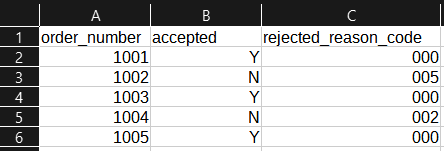
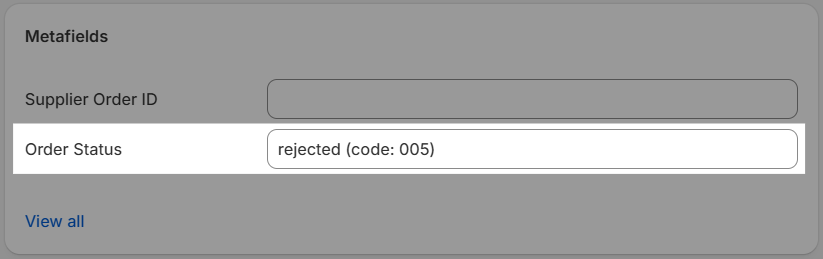
Fulfilleo allows you to automate updates to order metafields without fulfilling the orders. This feature is useful for marking orders as accepted or rejected based on an acknowledgment file provided by your fulfiller.

<figure><img src="/files/x7G0Urnsp0lI0JK3oXDf" alt="Screenshot of a sample acknowledgment CSV file showing order numbers, status, and other fields that can be used for updating order metafields."><figcaption><p>Sample acknowledgment CSV file</p></figcaption></figure>

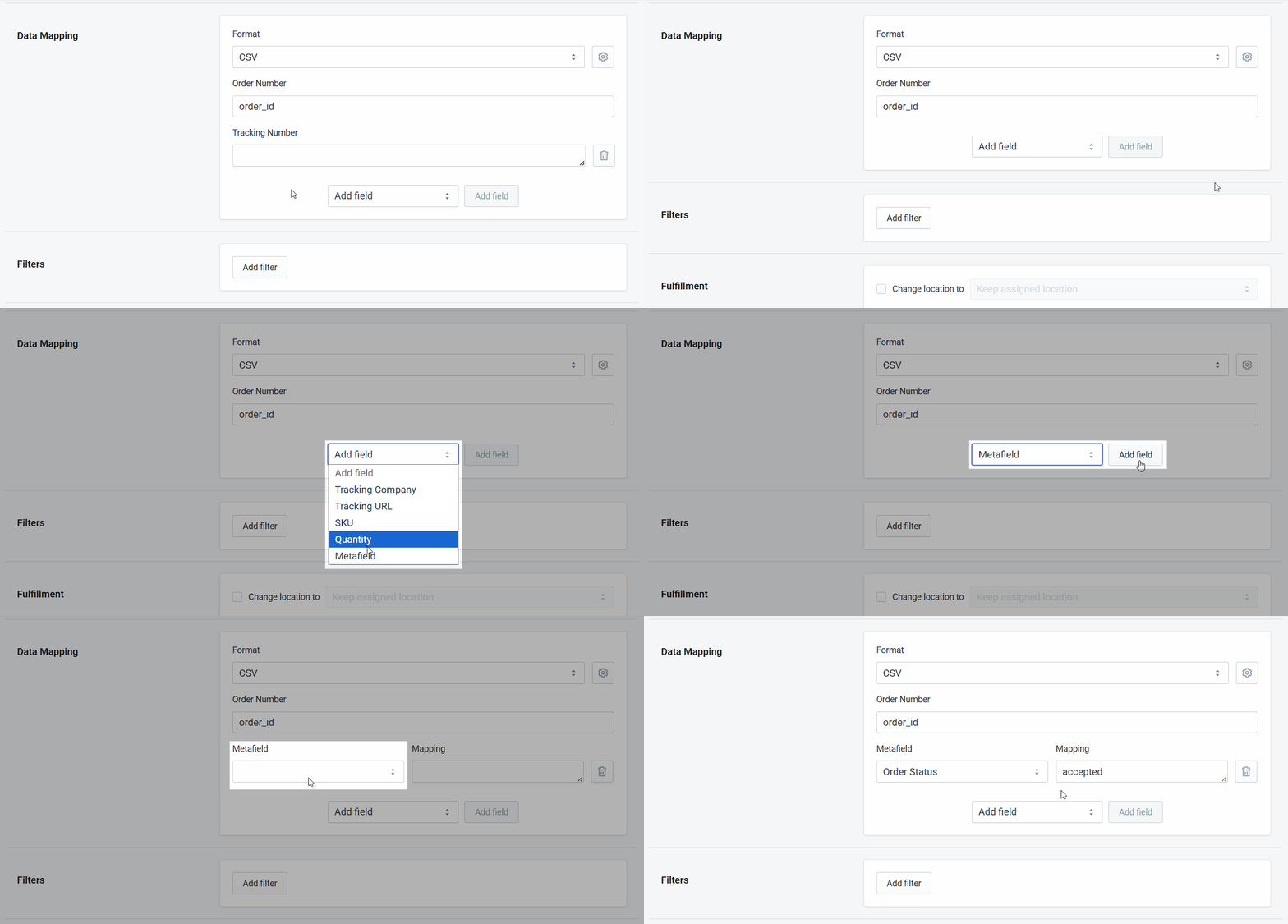
To process an acknowledgment file without marking the order as fulfilled:

1. Go to the **Data Mapping** section.
2. Delete the **Tracking Number** field.
3. Add the **Metafield** field (or multiple fields).
4. Select the metafield(s) to update and configure the mapping.

<figure><img src="/files/O0wBTlzOojbvEiD325t6" alt="Animated and annotated view of the Fulfilleo data mapping screen showing how an acknowledgment file is mapped to update order metafields without fulfilling the order"><figcaption><p>Fulfilleo data mapping for acknowledgment files, updating order metafields</p></figcaption></figure>

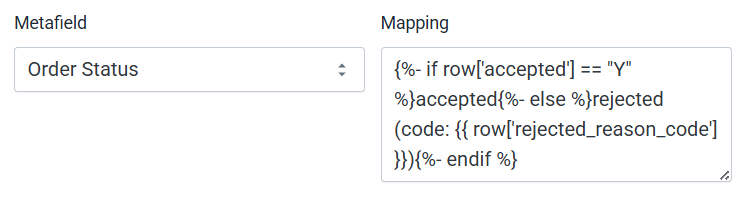
You can also use **Liquid** to transform values from the feed into a format that works best for your workflow.

```liquid
{%- if row['accepted'] == "Y" %}accepted{%- else %}rejected (code: {{ row['rejected_reason_code'] }}){%- endif %}
```

<figure><img src="/files/FNF3DfenOx9scTQfQGF7" alt="Fulfilleo data mapping screen showing a Liquid formula used to transform acknowledgment file values before updating order metafields"><figcaption><p>Fulfilleo data mapping using a Liquid formula for acknowledgment files</p></figcaption></figure>

<figure><img src="/files/NL8FB7qYhSmS3CmkeWKj" alt="Order details view showing a metafield updated from an acknowledgment file, with the value transformed using a Liquid formula"><figcaption><p>Order metafield updated using an acknowledgment file value converted with a Liquid formula</p></figcaption></figure>